• Canadian Flag Proudly Canadian Operated
  • Common Tech Issue of the Week #4

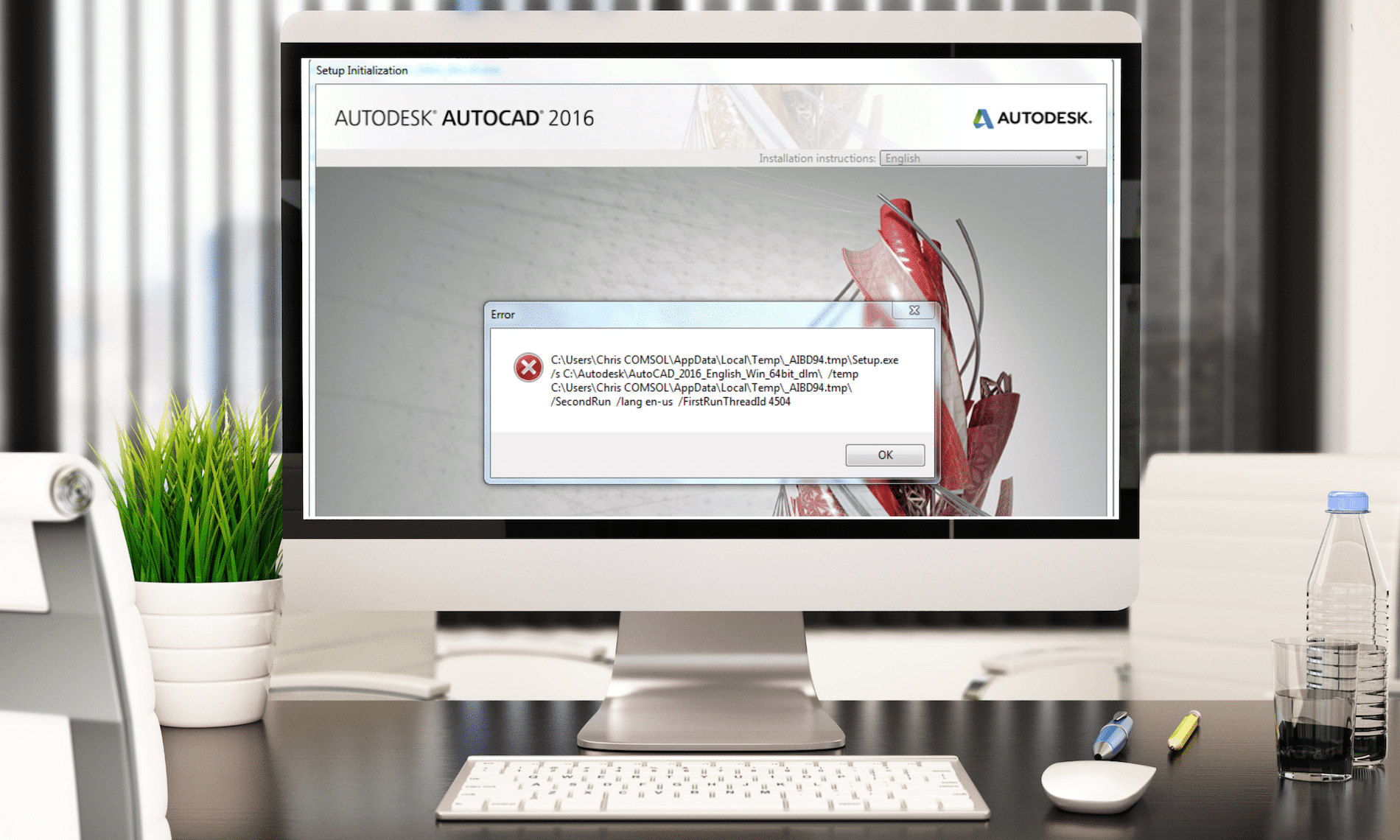
    When starting Microsoft Office every time, AutoCAD runs for installation

    Issue:

    When starting Microsoft Office every time AutoCAD® runs for installation. Two error messages pop up:
    AutoCAD <version>: Please wait while Windows configures AutoCAD <version>
    AutoCAD <version>: Run setup.exe to install AutoCAD <version>

    Solution:

    Repair your AutoCAD installation:

    • Start – Control Panel – Programs and Features
    • Select your AutoCAD version and choose from context menu “Uninstall/Change”
    • In the dialog select “Repair or Reinstall”
    • In the next dialog select the option “Repair” and click the button “Repair”


    Using the Autodesk Prerequisite Checker

    Check Hardware Specifications – Autodesk Prerequisite Checker

    Want to know if your computer can run AutoCAD, Revit, 3DS Max, etc.. Instead of comparing your computer to a recommended system specifications, use the Autodesk Prerequisite Checker.

    For more info click the following link


    Common Tech Issue of the Week #3

    Restoring Toolbars in New Versions of AutoCAD

    Issue:

    Although the new type of interface with Ribbons was introduced in AutoCAD 2009 to replace traditional Toolbars, there is still a large number of users who prefer Toolbars.  Until and including AutoCAD 2014 it was very easy to restore them.  All you had to do was to select AutoCAD Classic as the current workspace as seen in figure.

    Things got more complicated starting with AutoCAD 2015.  AutoCAD Classic workspace is no longer available, but luckily for those who prefer Toolbars, they are still included.

    Solution:

    One option is to transfer the AutoCAD Classic workspace from older customization file (ACAD.CUIX) to your current version of AutoCAD:

    1. In your new version of AutoCAD type CUIIMPORT command and press Enter.  The “Customize User Interface” dialogue box will be displayed with “Transfer” tab as current.  The right half of the dialogue box will display the contents of the current version ACAD.CUIX file.
    2. On the left half of the dialogue box, click the “Open customization file” button and select your older version ACAD.CUIX file with “AutoCAD Classic” workspace.
    3. Using your mouse, drag and drop “AutoCAD Classic” workspace from the older-version ACAD.CUIX file on the left to the current version on the right.

    4. Click OK to close the dialogue box
    5. Set “AutoCAD Classic” workspace as current.

    Civil 3D – Tip of the Day

    Civil 3D Object Tooltips

    If you’ve been using Civil 3D for a while, than you’re probably loving the object tooltips!

    There are two types of tooltips (Proximity and Rollover)  for Civil 3D objects, which you can find from Civil 3D help documents.

    So let’s review them!


    Rollover

    A rollover tooltip displays information about an object when you hover the cursor directly over it. If the object highlighting setting is on, the object will be highlighted when this tooltip is displayed.

    Proximity

    A proximity tooltip displays information about the current location of the cursor with respect to one or more objects in the drawing. More specifically, it displays information about the proximity of the cursor to the objects. These tooltips are displayed without having to hover the cursor over any specific entity in the drawing.

    The most important object information is displayed at the beginning of the tooltip. For alignments and surfaces, the tooltip displays the station/offset information for the closest alignment to the cursor and the elevation of the topmost surface.

    If you keep your cursor in the same location, additional information is displayed in an expanded tooltip that shows up to four more items. Which items are displayed depends upon the objects in the drawing and whether tooltips are enabled for that object. If there are five alignments and five surfaces in the drawing, for example, the proximity tooltip will display three alignments and three surfaces. Alignments are shown in order of proximity to the cursor. Surfaces are shown in order from highest elevation, to lowest elevation.

    On the Toolspace Settings tab, right-click Surface –> Edit Feature Settings

    Notice the “New Entity Tooltip State”

    On: Sets the default state of tooltips for new objects to be turned on.

    Off: Sets the default state of tooltips for new objects to be turned off.

    Revit Tip of the Day #1

    Backing Up and Recovering Revit Files

    Standalone and Workshared Revit Files are backed up and restored in completely different ways. Here is an explanation and some best practices…

    You should probably refer to this blog post for additional info…

    Revit Files are Clogging Up My Server Storage!

    Standalone Revit Project Files

    Revit makes *.001.rvt Revit files in the same Folder as the Revit File.

    The amount of these backups are controlled by SaveAs-Options-Maximum. Every time you save, a backup will be created. The highest number will be the latest. In my opinion 3 is plenty. Default is 20, too many!
    You can be reminded to save every so often by setting Application Menu-Options-Save Reminders. Set to 30 mins.

    You can restore a backup file (*.001.rvt) by renaming (remove the .00) it and opening it. So as an example a file called PROJECTA.001.rvt would be renamed PROJECTA.rvt.

    Workshared Revit Project Files

    Does not have *.001.rvt like Standalone.

    You can be reminded to save every so often by setting Application Menu-Options-Sync to Central Reminders. Set to 30 mins.

    There is a Local backup folder in same location as Local Revit file. It contains files that you shouldn’t touch. You can set the amount of steps a Local Revit File can be rolled back in SaveAs-Options-Maximum. The default is set to 20. Best practice, set to 5.

    There is also a Central backup folder in same location as the Central Revit file. It contains files that you shouldn’t touch. You can set the amount of steps a Central Revit File can be rolled back in SaveAs-Options-Maximum when creating the Central. The default is set to 20. Best practice, set to 5. High numbers will use a lot of server space.

    Things to keep in mind about Restore Backup:

    • Backups are restored from Collaborate-Restore Backup for either Locals or Centrals.
    • Restore Backups cannot be undone.
    • Cannot reconnect to Central if you are separated even if you ‘Restore Backup’.
    • For these reasons I rarely recommend using Restore Backup.


    If you get a corrupt Central Revit file, use one of the Locals to re-create a Central. This almost always is the best option. If all the Locals and Central are corrupt, send the Central Revit  File and Journal Files to Autodesk and wait (about a week) to get an older restored version returned to you. If you can’t wait that long, go to your general server backups and get yesterday’s Central file. I haven’t seen too many corruptions in my 10 years of Revit consulting.

    If a user ignores the Sync to Central reminders long enough they will disconnect from the Central. They will lose their work as there is no way to reconnect. So Sync to Central every 30 mins.

    Civil 3D – Tip of the Day

    Civil 3D Label Styles-Using Expressions

    For every project, we either use out-of-the-box styles or create new styles to meet specific requirements of the company we work for or the project we are working on.

    Once they are included in our template, we have everything covered, right?

    But what if you need to display a property of an object that isn’t available under the Label Style Composer? Or maybe we want to display the label in a different way based on a certain value of the object?

    First, let’s take a quick look at the fundamentals of the Expressions.

    Expressions are located under the Settings tab of the Toolspace, under the Label Styles folder. (See Picture Below)

    The New Component dialogue box consists of a number of components that are used to create the Expression.

    1. In the Name field enter a relevant, identifiable name for your Expression
    2. The Expression field will contain all the formulas and properties as the Expression is developed.
    3. Buttons that may be used to aid in the development of the Expression (you can enter by the keyboard if you prefer)
    4. The available object properties that may be inserted in the Expression field.
    5. Functions that may be used in the development of the Expression
    6. Choose how the results of the Expression are to be formatted. Usually always Double. (Unitless)
    EXAMPLE

    Let’s use an example and create an Expression that will truncate a pipe length label to the nearest 0.50 metre.

    We get this request at times because not everyone wants the accuracy of a pipe length shown to the tenth of a metre.

    To create the Expression right click on the “Expressions” and select New (See Image Down Below)

    here are the STEPS


    STEP 1:

    In the dialogue box enter a name and description for the Expression that reflects the resultant label style. (Image 1)

    STEP 2:

    Pick the Formula button to expand the Expression Functions, in our case select the ROUND function (Image 2)

    NOTE:  The image to the right shows an arrow pointing to a button that inserts the ROUND function to the Expression window.

    STEP 3:

    Next we need to add the Object Property by picking the Object the Properties button and picking the appropriate Property.

    In our case we will select 2D Length-Center to Center which is automatically inserted into the Expression window. (See Images Below)

    Now we just need to add a little more math to complete the Expression and then click OK.


    STEP 4:

    The new Expression will be displayed in the Preview window of the Toolspace>Settings tab under the Pipe Label Styles and is now available to be applied to a pipe label

    To add the Expression to the Label Style create a New pipe Label by copying and editing an existing style.


    STEP 5:

    Copy the default Length Description and Slope label style and rename it Rounded Length and Slope (See Picture Below)

    [/vc_column_text]

    Then select the Layout tab and in the Text section on the Contents row pick the corresponding cell in the Value column and pick the Ellipse button to access the Text Component Editor. (As seen in the picture below)

    [

    In the preview window of the Component editor highlight the “2D Length…” string and press delete to remove it from the label.


    STEP 6:

    In the Properties section pick the down arrow and locate the “Pipe Length to Nearest 0.5m” Expression that was created, set the Precision to 0.1 and click the UPDATE arrow to update the label in the preview window.

    Click OK twice to closer the Component Editor and Label Composer.

    Apply the new pipe label to the pipe object and the center to center length with be rounded to the nearest 0.50m.


     

    Common Tech Issue of the Week #2

    Softlock Manager Error when starting AutoCAD

    Issue:

    When starting AutoCAD with standalone license the following error appears and software does not start:
    “The security system (Softlock license manager) is not functioning or is improperly installed” (screen shot attached)

    Causes:

    There may be several reasons for this error, but most likely it’s the FLEXnet Licensing Service which is stopped or disabled.

    Solution:

    1. Go to Control Panel – Administrative Tools and double-click Services.
    2. Find “FLEXnet Licensing Service” and “FLEXnet Licensing Service 64” (depending on the system, only one of the two may exist).
    3. Right-click on “FLEXnet Licensing Service” and select “Properties”.
    4. Set Startup type to “Automatic”.
    5. Under Service status click “Start” button.
    6. Click OK.
    7. Repeat steps 3-6 for “FLEXnet Licensing Service 64”.
    8. Start AutoCAD.


    Common Tech Issue of the Week #1

    PDF created from AutoCAD shows frames around text in PDF viewer


    Issue:

    When viewing a PDF from AutoCAD in a PDF viewer, such as Foxit Reader or Adobe Reader, frames are displayed around text.

    Causes:

    Text frames are displayed by the PDF viewer and are not an inherent feature of the PDF or something that AutoCAD did in its creation. By default, frames are displayed in Foxit Reader and are turned off in Adobe Reader. The frames indicate there are comments linked to the affected text.

    Solution:

    In AutoCAD 2017 and later, a new system variable, PDFSHX, has been added

    –  Set PDFSHX to 0

    In AutoCAD 2016, a new system variable, EPDFSHX, was added to address this issue with, AutoCAD 2016 Service Pack 1 :

    –   Install AutoCAD 2016 Service Pack 1.

    –  At the command line, enter EPDFSHX.

    –   Adjust the system variable to 0.


    Software Update for Autodesk Civil 3D

    Performance Enhancement Tool for Autodesk Civil 3D 2014-2017

    Autodesk has received reports of major performance issues when opening, purging and plotting Civil 3D drawings in versions 2014-2017.

    For Civil 3D 2017, the performance enhancement tool is part of Service Pack 1.1 and the recent release of Service Pack 3 for Civil 3D 2016 addresses this issue however earlier versions require an update applied to each user machine.

    Please use the following link to review details on the issue and download the appropriate updates.

    SolidCAD partners with Chaos Group, a worldwide leader in computer graphics technology!

    Photoreal imagery from V-Ray for Revit

    TORONTO, ON – January 5, 2017– SolidCAD, an Autodesk Platinum Partner reseller in Canada is pleased to announce a new partnership with Chaos Group, a leading company specializing in physically-based rendering and simulation software, used daily by top design studios, architectural firms, advertising agencies and visual effects companies around the globe.

    This variety of professional rendering plugins for software, proudly support the 3D community, including products such as: V-Ray for Autodesk 3ds Max, V-Ray for Autodesk Maya, V-Ray for Trimble© SketchUp and most recently V-Ray for Autodesk Revit.

    Chaos Group creates software that help artists and designers create photoreal imagery and animation for design, television and feature films, ultimately allowing users to add realistic lights, cameras and materials using a non-destructive workflow.

    SolidCAD’s president Michael Kugan states, “Our extensive knowledge of the computer added design market puts us in the best position to work together with Chaos Group and offer integrated rendering solutions that will help our clients visually communicate their work from imagery to Virtual Reality. “

    Join SolidCAD an III Part Webinar Series, January 11, 18 & 35 from 1:30 pm to 2:15 EST to learn more about V-Ray: https://attendee.gotowebinar.com/register/2848015871173493762[/gil_content]

    About Chaos Group

    Chaos Group is a worldwide leader in computer graphics technology, helping artists and designers create photoreal imagery and animation for design, television, and feature films. Chaos Group specializes in physically-based rendering and simulation software used daily by top design studios, architectural firms, advertising agencies, and visual effects companies around the globe. Today, the company’s research and development in cloud rendering, material scanning, and virtual reality is shaping the future of creative storytelling and digital design. Founded in 1997, Chaos Group is privately owned with offices in Sofia, Los Angeles, Baltimore, Seoul, and Tokyo. For more information, visit: chaosgroup.com